Data Explorer
The Data Explorer is designed to complement code-first exploration of data, allowing you to display data in a spreadsheet-like grid, temporarily filter and sort data, and provide useful summary statistics directly inside of Positron. The goal of the Data Explorer isn’t to replace code-based workflows, but rather supplement with ephemeral views of the data or summary statistics as you further explore or modify the data via code.
The Data Explorer can be used to view raw data files (CSV, Parquet, etc.) in your Positron workspace as well as dataframes in your active Python or R sessions.
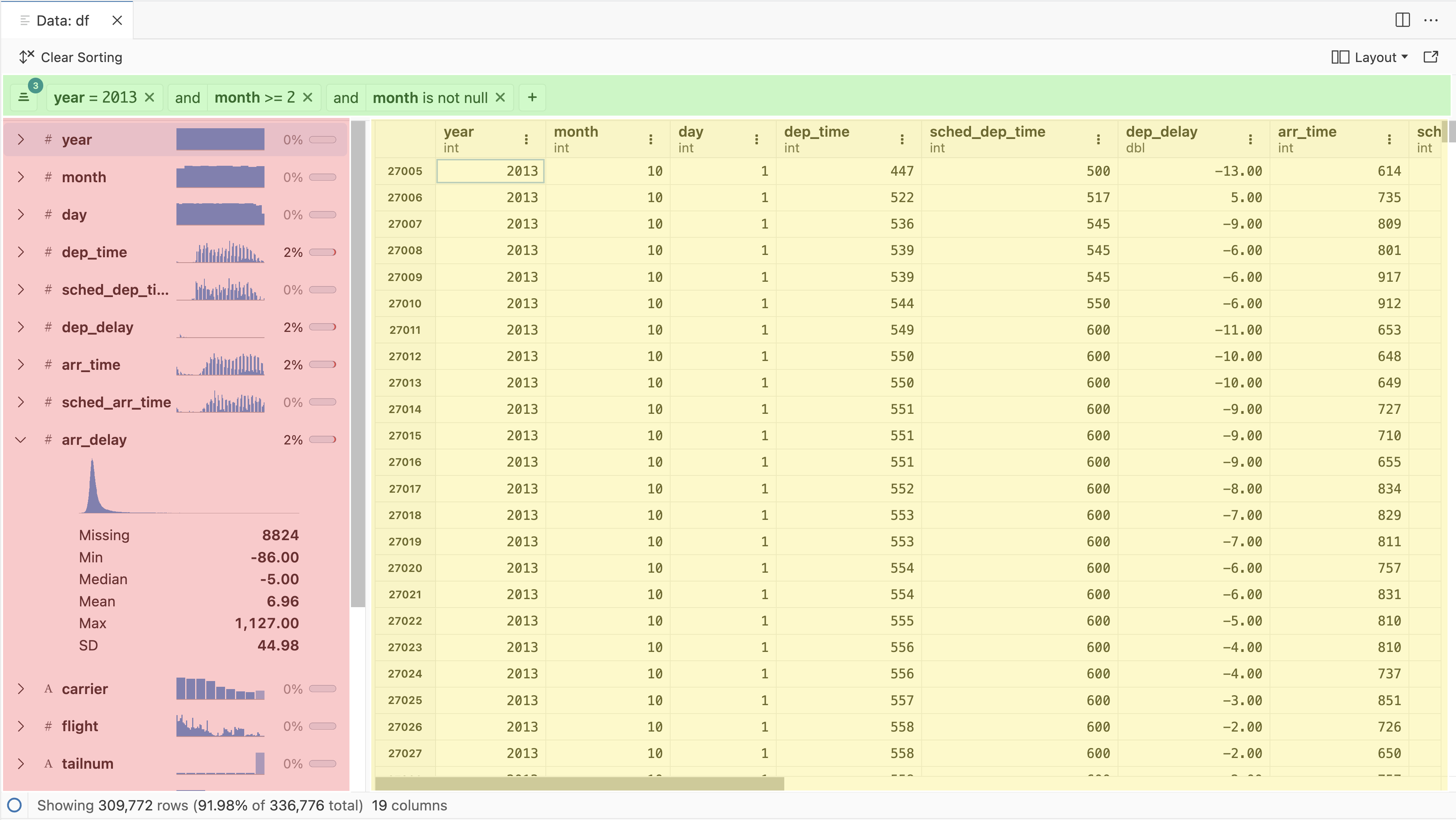
The Data Explorer has three primary components:
- Data grid: Spreadsheet-like display of the individual cells and columns, as well as sorting
- Summary panel: Column name, type, and missing data percentage for each column
- Filter bar: Ephemeral filters for specific columns
Opening the Data Explorer
There are a few ways to open the Data Explorer. If you want to look at data you have loaded into memory already, you can navigate to the Variables Pane and click on the table icon for a specific dataframe object.
![Variables pane interface showing data frame named df with expanded columns year, month, day, dep_time, sched_dep_time. In top row next to variable name and [336776 rows x 19 columns], a table icon is highlighted.](images/data-explorer-variables.png)
Using code or the console, you can also run one of the following commands:
- In Python:
%view dataframe label - In R:
View(dataframe, "label")
In Python, the %view magic can also be used with expressions, for example %view df[df['column'] > 10]. In R, the View function can be composed with expressions using pipe syntax:
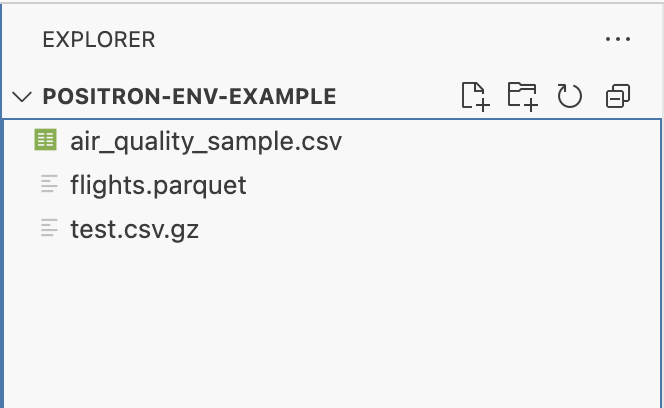
df |> mutate(doubled_column = column * 2) |> View()Directly opening .csv, .tsv, and .parquet files (using DuckDB) is supported by clicking on a file in the File Explorer or using the Command Palette. GZIP-compressed CSV files ending in .gz can also be opened. We may add support for more file types in the future.
Opening CSV files as plain text
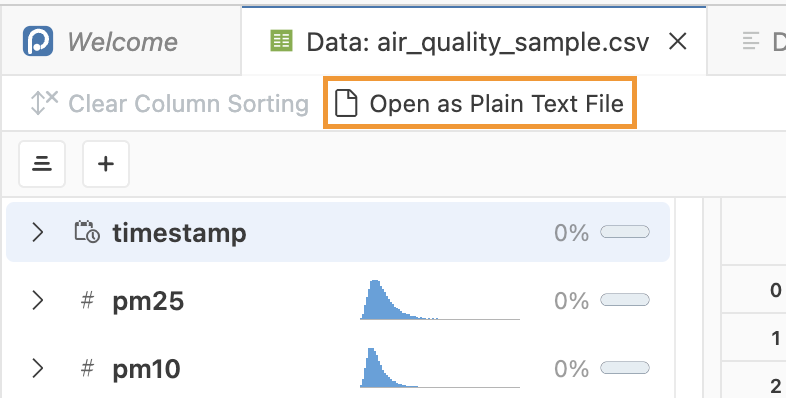
After opening a CSV file in the Data Explorer, if you need to view the file in the text editor, click on the “Open as Plain Text File” option in the top action bar:
Learn more
- Data grid: Spreadsheet-like display of the individual cells and columns, as well as sorting
- Summary panel: Column name, type and missing data percentage for each column
- Filter bar: Ephemeral filters for specific columns